
How to Play Choicer Voicer
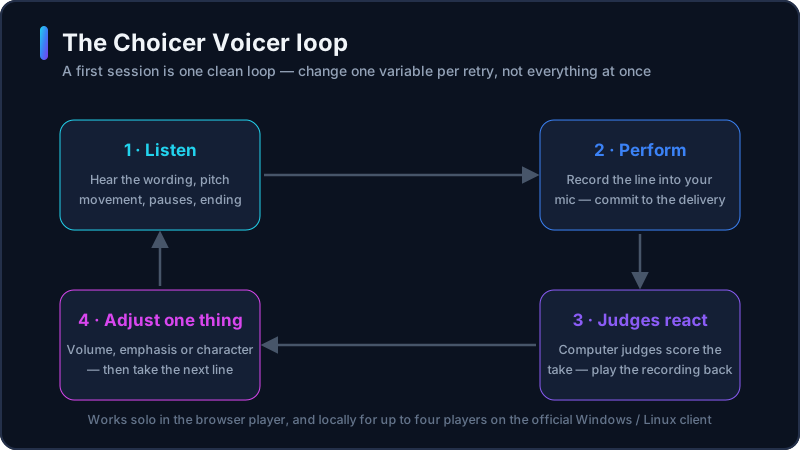
Working out how to play Choicer Voicer? Everything starts from one loop: a clip plays, you perform the line into your microphone, and computer judges react to the take. This beginner guide walks through that loop step by step — what to install, how to test the mic, where packs come from, and what changes when friends join the room.
choicervoicer.info is an independent fan site. We are not affiliated with YeahMaybe. This guide describes the official desktop game; the browser player on our homepage is an unofficial tryout.

What You Need Before Playing
The official game is the Windows and Linux client sold by YeahMaybe on itch.io for $5 USD or more. Before buying, grab the free No Gameplay Demo from the same store page: it exists so you can confirm the game records your microphone on this machine before you pay. The game is an early-access alpha in active development, and updates arrive through your itch.io library instead of a second purchase.
Controls stay simple for the whole game: the mouse drives menus, pack folders, and setup screens, while the microphone does the performing. That is why a microphone you trust matters more than a powerful PC. The developer warns that some audio setups never record, and surround-sound output (5.1 / 7.1) is the most commonly reported culprit. A normal stereo headset is the safest starting point.
Content is the third piece. The studio ships with very little built-in content — customization is what the game was founded on, according to the official site. Packs supply what you imitate and who reacts: voice clips, contestants, menus, studios, judges, and hosts. Start with the official Packs & References on itch.io before adding community folders. If you only want a taste first, the unofficial browser player on our homepage runs a solo voice challenge with no install.
How to Play Choicer Voicer, Step by Step
The official client is a game-show studio: one performer at a time, computer judges, and content supplied by packs. These steps cover a first solo session on Windows or Linux.
- 1
Install the official client and run the demo
Buy The Choicer Voicer on itch.io, or start with the free No Gameplay Demo. Extract the Windows or Linux build and run the executable. Confirm recording works before adding anything else.
- 2
Choose a pack and load content
The game ships with very little built-in content, so pick a pack before your first round. Official Packs & References match the current client. Community folders exist for voice, contestant, menu, studio, judge, and host content; chatter packs only matter for Twitch streaming.
- 3
Listen to the full reference clip
Hear the wording, the pitch movement, the pauses, and how the line ends. Skipping this is the most common first-round mistake: the judges compare your take to the clip, not to your memory of it.
- 4
Record your impression
When the prompt starts, perform the line into your microphone. Commit to the delivery rather than whispering a careful pitch match. In a party, one person performs at a time while the rest of the room stays quiet.
- 5
Review the take and the score
The computer judges react to your take. Playback is the part people skip: listen to your recording, note one thing to change, and treat a weak score as feedback on delivery and timing, not just vocal accuracy.
- 6
Change one variable and continue
Move to the next line. On a retry, change volume, emphasis, or character — not everything at once — so you can tell what the panel actually reacted to.
Tips for Better Recordings
Most first-session problems are audio problems, not skill problems. These habits come from the developer’s own store-page warnings and what already works on this site’s homepage mic notes.
Headphones beat speakers
Same-room speakers leak the reference clip into your take. Headphones keep the prompt out of the recording.
Try stereo output first
Recording that stops mid-round is most often reported on 5.1 / 7.1 surround setups. Switching to stereo is the first thing to test.
Confirm playback, not just monitoring
Hearing yourself live is not proof the take saved. Play a recording back before the round starts.
Start with short, familiar lines
A pack of clips you already know keeps turns moving and scores meaningful. A huge unfamiliar set stalls a first session.
Close apps that hold the mic
Voice chat and recorder apps can lock the input. Close them, then let the game request the microphone again.
Re-test with the free demo after big changes
New drivers, a new headset, a new PC: run the No Gameplay Demo before blaming a pack or your voice.
Playing With a Group
Official multiplayer is local: up to four players on one Windows or Linux machine, each with a microphone assigned on the setup screen. One performer performs at a time and the computer judges stay on the panel. Skip the mic assignment and voices bleed into the wrong turn.
There is no online matchmaking. YeahMaybe has said online multiplayer does not exist at this time and is not planned for the foreseeable future, citing safety concerns around shared voice audio. For remote friends, the practical setup is one desktop session plus a call — with the usual delay and echo problems.
Twitch-facing modes are the official group alternative: chat can vote on performances, up to five Twitch usernames can fill judge slots as panelists, and chatter packs play keyword-triggered audio for viewers. That is streaming interaction, not extra local seats — and it does not change how to play Choicer Voicer at the desk: one machine, one performer at a time. The dedicated multiplayer guide covers party setup and Twitch modes in depth.
The Loop in Pictures
Two official screens cover the whole loop: the show intro seats you at the podium, then the performance screen counts you in over the reference waveform.
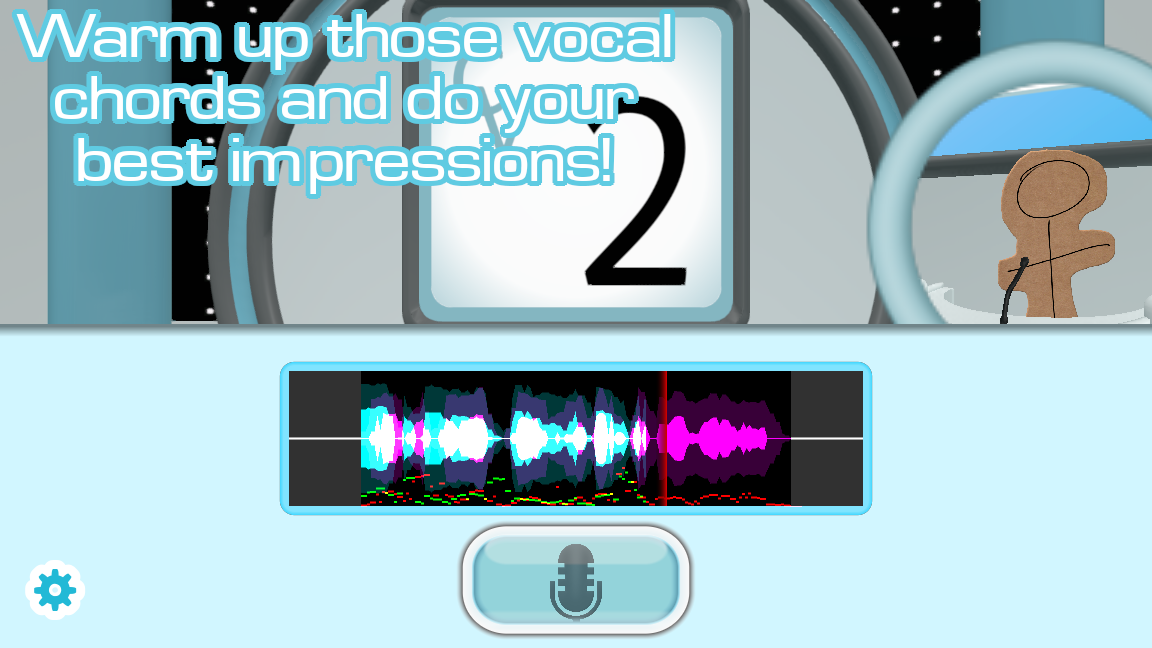
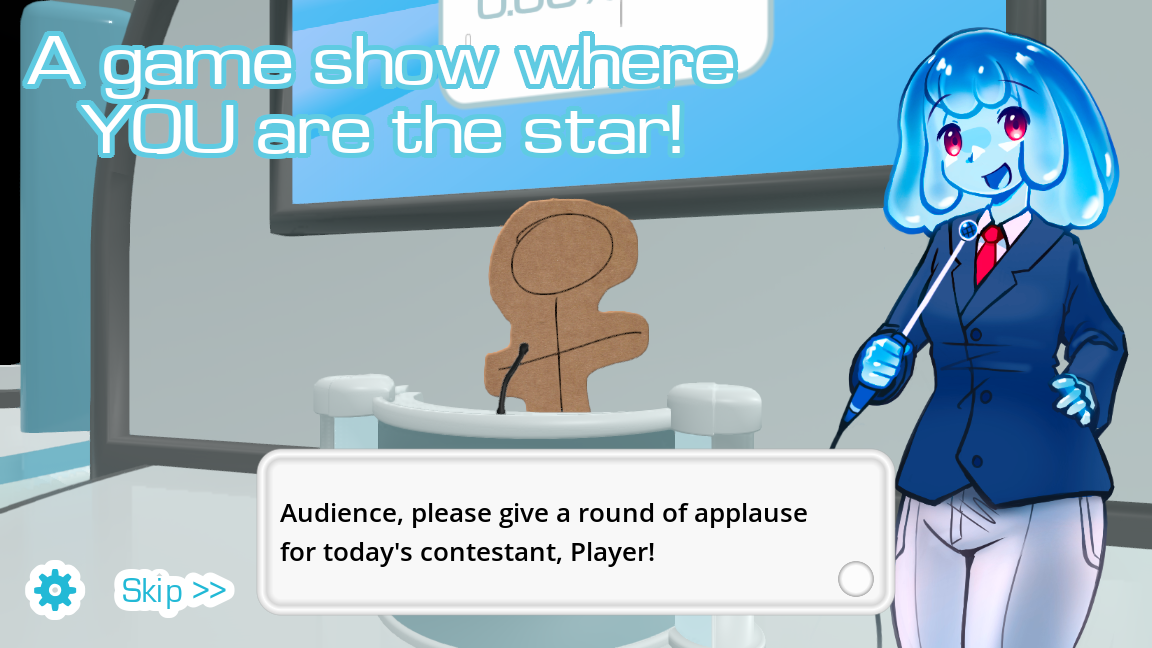
Game screenshots on this page come from YeahMaybe's official itch.io listing for The Choicer Voicer. All game art belongs to YeahMaybe.
How to Play FAQ
Related Choicer Voicer pages
When the loop makes sense, add your first pack, set up a local party, or fix a microphone that refuses to record.
Load a pack, press record, and commit to the line
Once you know how to play Choicer Voicer, the loop is short: listen, perform, hear the judges, adjust one thing. Get the official client and a first pack, or warm up in the unofficial browser player.